Features Spreadsheet Editing
Edit any Podio view as a spreadsheet
One click on the Sheet button opens the current view as a spreadsheet. Type into cells, add rows, and copy & paste to fill a whole column in seconds.
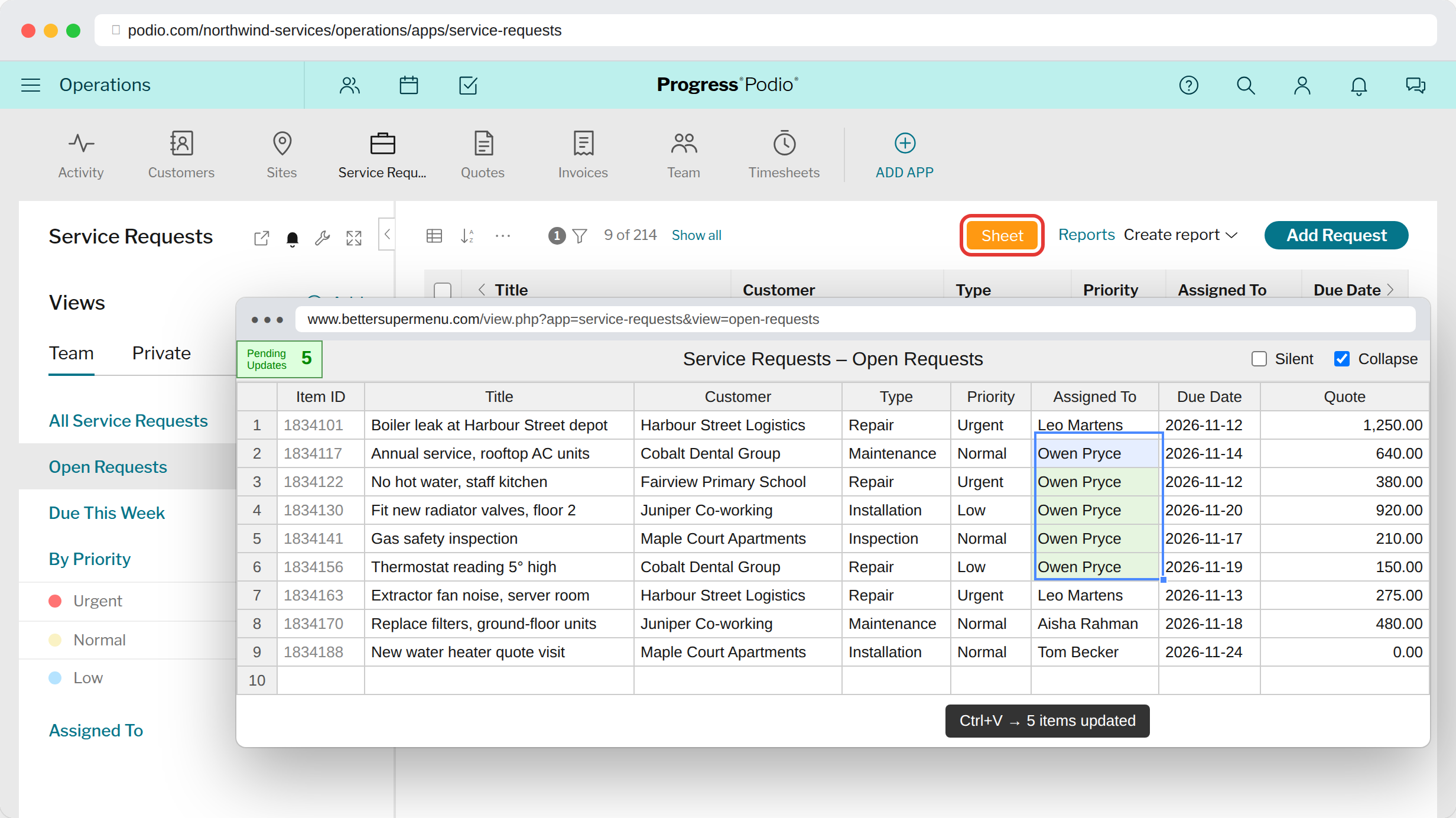
Copy & pastePaste a column from Excel or Google Sheets, or fill one value down many rows.
Type, don't clickMove with the arrow keys and edit cells in place. No opening items one by one.
Add rowsType into the empty last row to create new items.
Why it helps
Changing one field on fifty items in Podio means opening fifty items. In the sheet, it's select, paste, done. It's the fastest way to clean up data, reassign work or fill in a new field for existing items.
How to use it
- Open an app in Podio and select a view. Your filters and sort order carry over.
- Click the orange Sheet button in the toolbar.
- The view opens as a spreadsheet in a new window. Edit cells, paste ranges, or add rows at the bottom.
Each change saves to Podio as you go. The green counter in the corner shows how many saves are still on their way.
What you can edit
- Text, number, money, progress and duration fields
- Categories, from a dropdown
- Dates, contacts and relationships, with a search for the related item
- Calculations are shown but read-only. Image and embed fields are left out.
Deleting items isn't supported in the sheet. Very large views load slowly: filter the view first if you only need some of the items.
Don't want your edits to send notifications? See Silent Edits.
Try it in your Podio
Free Chrome extension. Takes a minute to set up.